Asset
REVIEW ASSET OBSERVATION
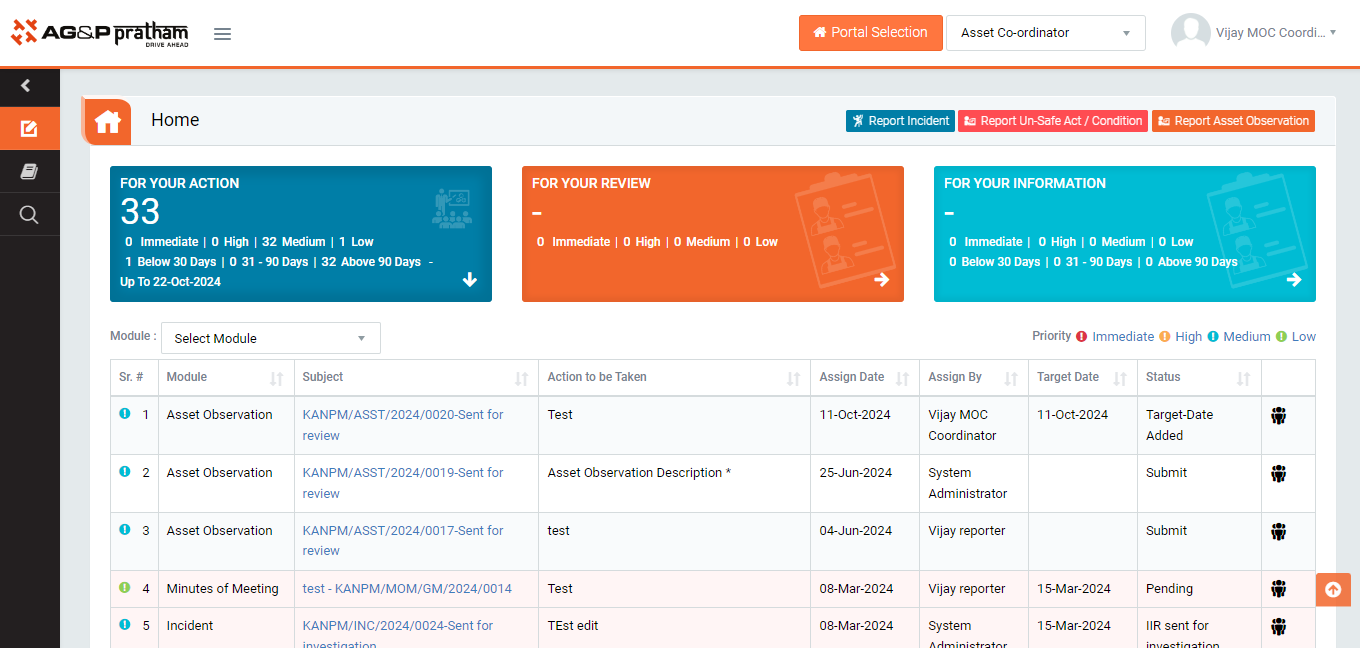
Figure 1
- Login as Asset Coordinator and navigate to EHS portal and to My Action screen | For your review (Image 1)
- There are three section provided to view and take action against tasks which are mentioned below :
- PENDING ACTIONS : Display “Incident/Near Miss”, “EHS Observation”, “EHS Inspection”, “Equipment Inspection” and action items which needs to be performed. Also display the tasks which are saved as draft are displayed here. User will update final information and submit it for further action.(This section is display by default)
- REVIEW ACTIONS : Display the tasks such as “Incident/Near Miss”, “EHS Observation”, “EHS Inspection” and “Equipment Inspection” including action items which needs to be reviewed. The tasks will be displayed to reviewer for review where reviewer will take action against it.
- INFORMATION ACTIONS : Display all the tasks such as “Incident/Near Miss”, “EHS Observation”, “EHS Inspection” and “Equipment Inspection” to creator/requester with their current status. User can view the task details by clicking subject in “Subject” column.
- When subject of “Asset Observation” in subject column in “FOR YOUR ACTIONS” section is clicked “ Asset Observation no - sent for review” screen will be opened in different tab.(Image 2)
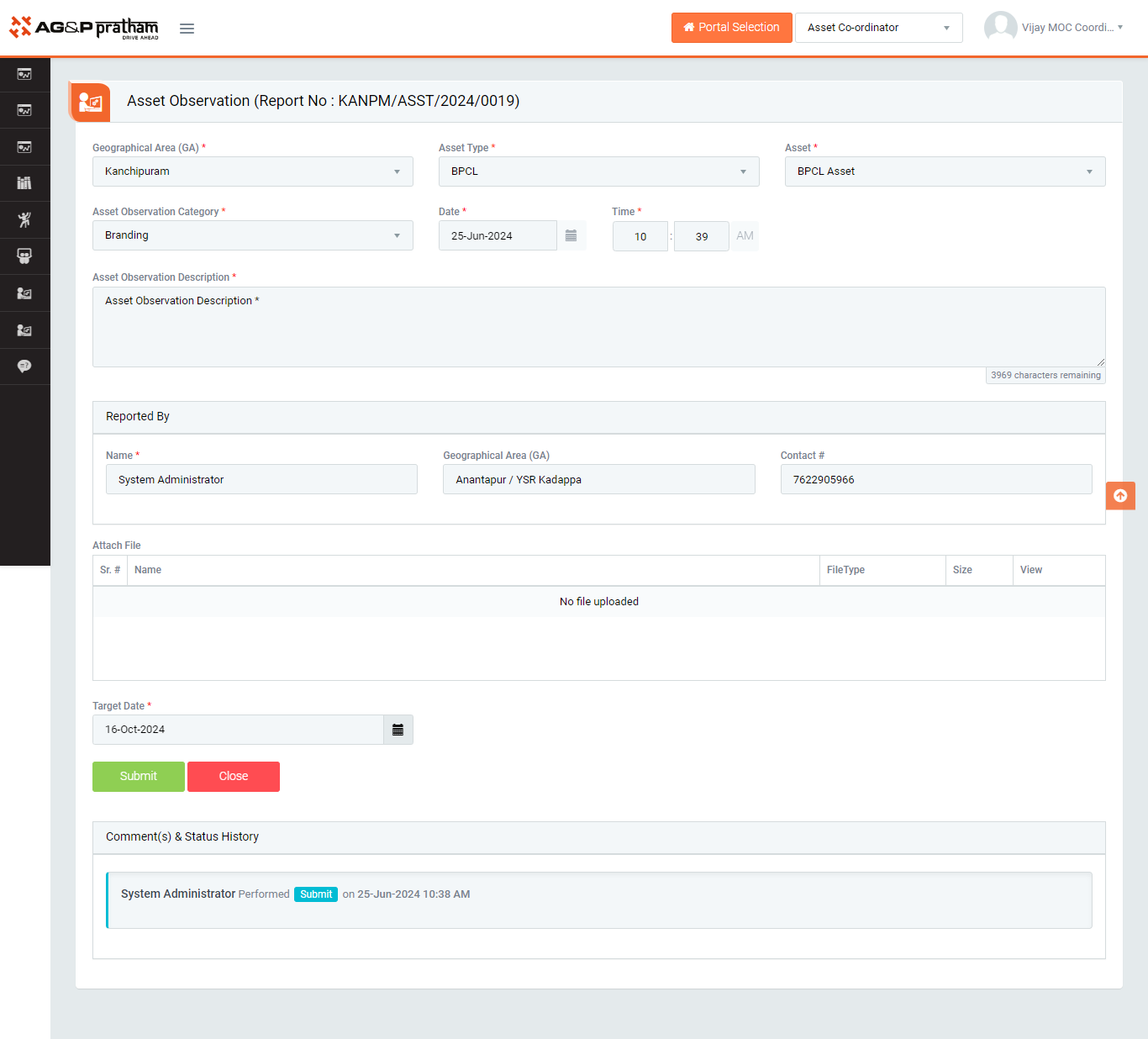
Figure 2
- To take action against a particular observation report select Action from drop down list as below :
- Reviewed and Revise Target date : If observation report is about to post pone, asset coordinator is authorized to revise the target date.
- Click Submit button to submit the observation report as per the selected action, target date will be revised.
Note :
- The fields marked with * are mandatory to be filled.