Configuration
HSSE Manager Role Authentications and Authorizations
Welcome to your personal guide of using AGP iReporting portal application.
The AGP iReporting portal software will help the safety department to manage request, plan, track progress and generate various reports of Incident, Near miss, EHS Inspection, EHS Observation, Action Items etc. in the application. This software will provide an easy to use, effective and better way to manage over all activities performed in the entire safety life cycle.
ROLE NAME
- HSSE Manager
WHERE TO ASSIGN ROLE TO USER
- USER Master
AUTHENTICATIONS
- REPORTING
- All Modules exists in the system.
- REVIEWS
- Incident Review
- Un-Safe act / Condition Review.
AUTHORIZATION
- CONFIGURATIONS
- Employee Master
- New Employee Master
- Add new employee
- Employee records
- Edit / Update existing employee data
- User Master
- Create user roles
- New Employee Master
-
Location Master
- Add / Update location GA wise
-
Asset Master
- Add / Update asset Asset type wise
-
Contractor Master
- Add / Update contractor GA wise
- Employee Master
NAVIGATION FOR AUTHENTICATION AND AUTHORIZATION
- Login as HSSE Manager role user and go to My Action screen

Figure 1
- PORTAL SELECTION
- Select the required Portal, Say EHS
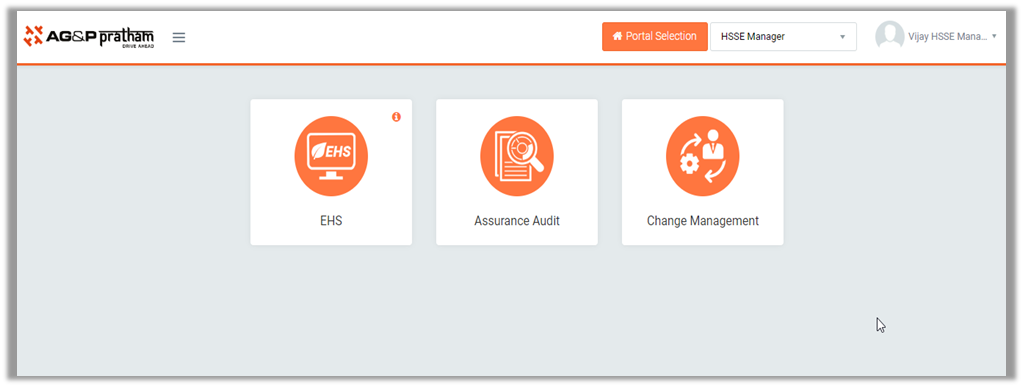
Figure 2
- Select the required Portal, Say EHS
- For Authentication actions click on ‘For your Review’ as shown below :
- REVIEW ACTIONS : Displays the tasks such as “Incident/Near Miss”, “EHS Observation”, “EHS Inspection” and “incident” including action items which needs to be reviewed. The tasks will be displayed to HSSE Manager for review and allows to take action against it.
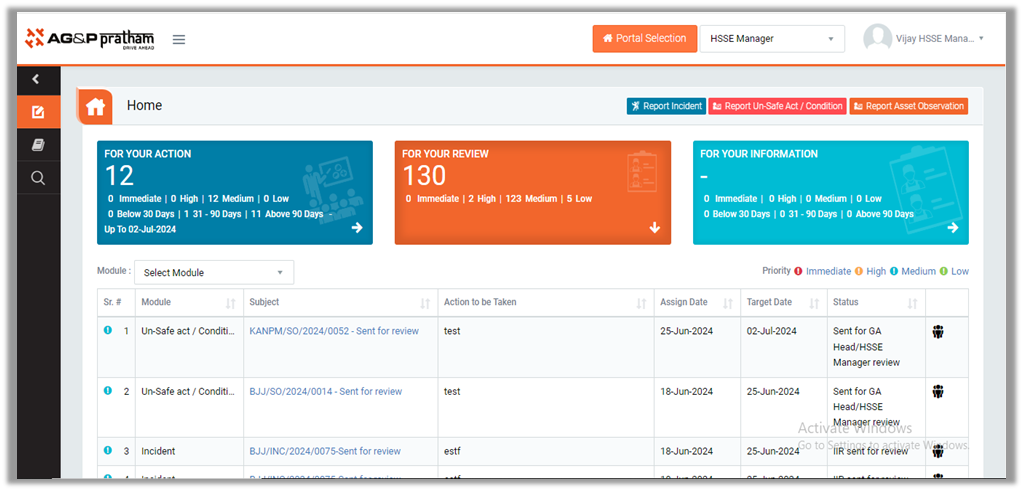
Figure 3
- Select the required module that action to be taken and review the reported request
- For Authorization actions navigate to Configurations :
- After launching the my tasks page, click on back button

Figure 4
- Navigate to Configurations menu
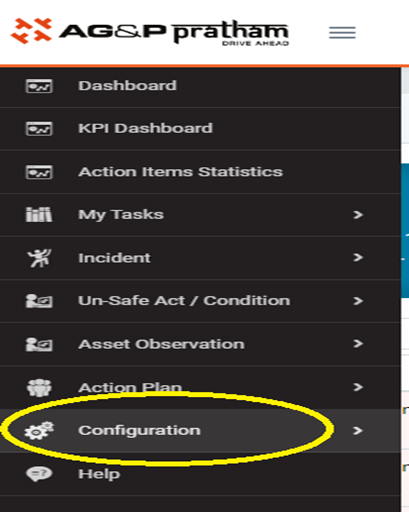
Figure 5
- HSSE Manager Can find required authorized masters to configure
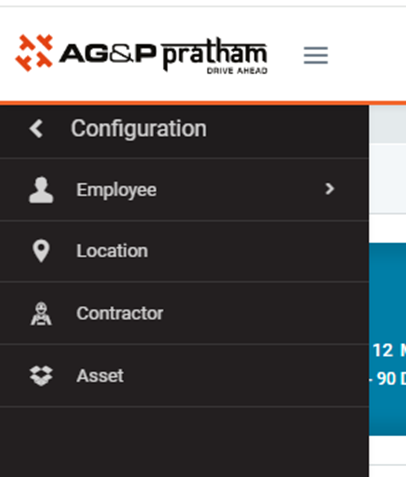
Figure 6
- Click on required master to configure