MOC
MOC CATEGORY B
Raise MOC Request By Any System User
Objective :It allows user to raise management of change using the system.
Types of MOC Categories
- Category A - Operational Changes
- Pre-assessed (GA level user)
- Non Pre-assessed (GA / Department level user)
- Category B - Non Operational Changes (Department level user)
Configurations - Reviewer Roles - User master
- Need to define the system user with below roles for different committee members
- Respective department head Reviewer - Head of Department role
- MOC Committee team Reviewers - MOC Committee role
- COO Reviewer - COO role
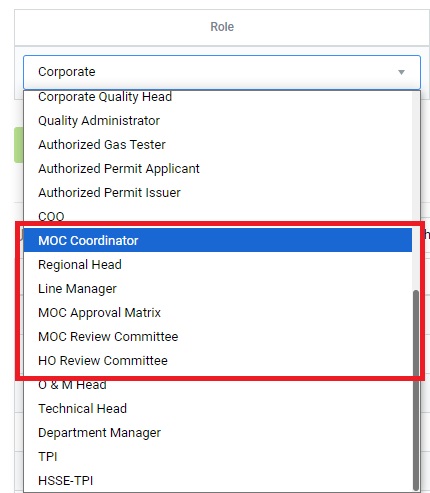
Figure 1
Below steps to be followed to complete Category B MOC:
- Request MOC :To request/raise new MOC. Any employee(GA level user) working on the GA, who has access to the system can raise a MOC.
- Review MOC by Respective Department Head:To review the raised MOC by Respective Department Head. The reviewer may approve the request or send back for Modifications.
- Review MOC by MOC Committee Review:To review the raised MOC by MOC approval matrix team . The reviewers may approve the request or send back for Modifications.
- Review MOC by COO:To review the raised MOC by COO. The reviewer may approve and accept the request or send back for Modifications.
Request MOC - Non Operational
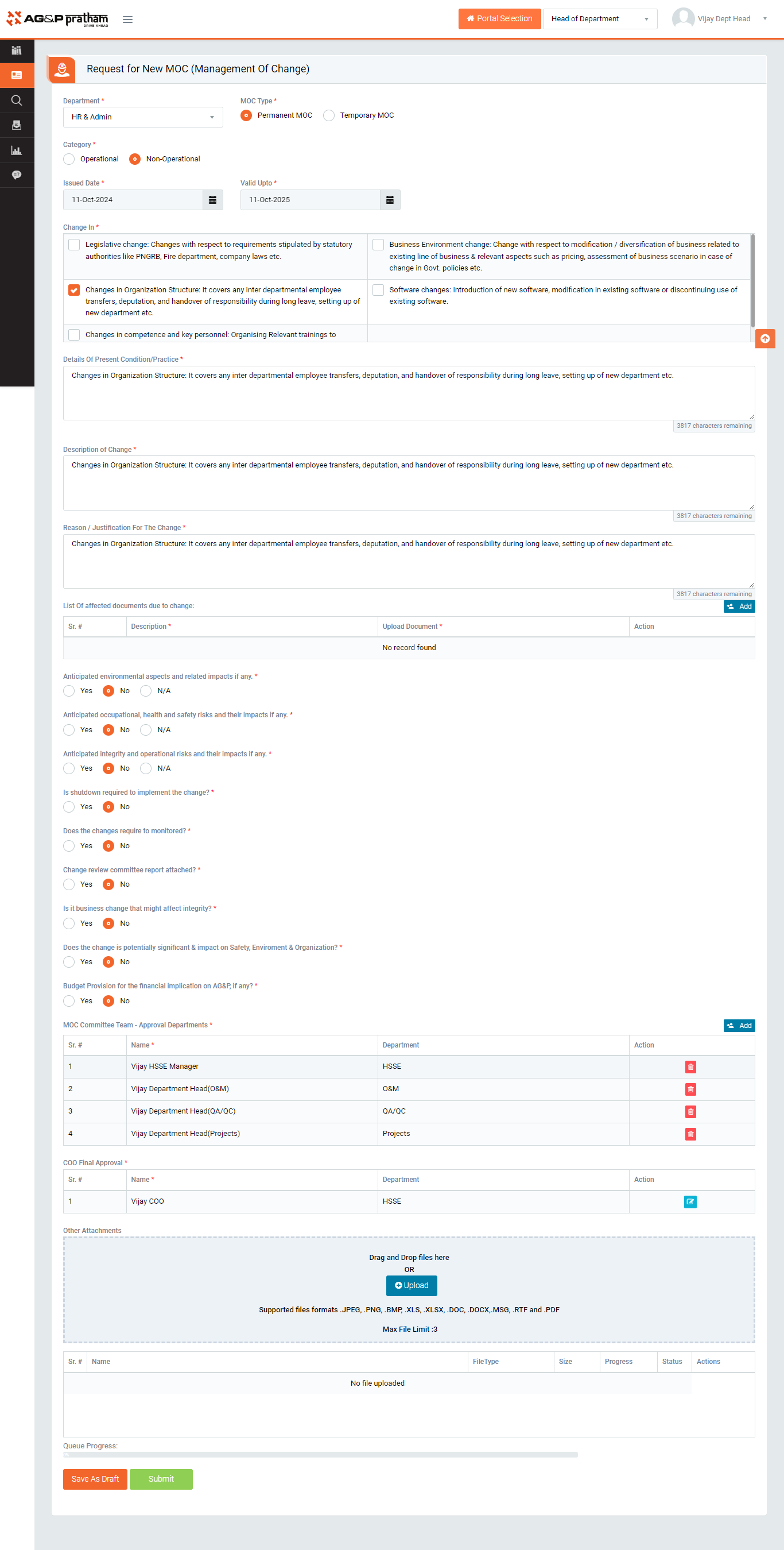
Figure 2
- Navigate to MOC Portal | Go to Request for New MOC
- Select GA, Asset type, Location, MOC Type, Category and sub category and issue date & Closure date and fill the other required details.
- Enter Line Manager in auto complete text box, change in, Details of present condition/practice, Description of Change, Reason / justification for the change, List of affected documents due to change and required options.
- Requester can add the reviewers in the given MOC Approval Matrix table
- Requester can attach files by clicking on attach button
- Click Upload button to upload the attached file and click Delete button to delete the file. (There is a file size limit of 20MB for attachments and a maximum number of file attachments to be uploaded is 10. Attachment files extension would be allowed such as “.JPEG, .PNG, .BMP, .XLS, .XLSX, .DOC, .DOCX, .RTF, .PDF, .mp3, .mp4, and .m4a”)
- On submit the MOC request will be sent to Respective Department Head review.
- Department Head is authorized to report Risk Assessment on requested change.
- After Department Head review,requested MOC is sent to MOC Review Committee team
- Once the MOC Committee team completes the reviews then it will go to final review of COO.
Note :
- The fields marked with * are mandatory to be filled.
- MOC can be raised by any employee working in the GA and has access to the system.
- The requested MOC can be seen in My Action | For Your Information tab.
- In available options, if selected as yes, attachment becomes mandatory.
- Defining the role is mandatory for every reviewer, other wise concern system user will not show in the reviewers field or table.