PTW
PTW Suspend
Objective : It allows HSSE Manager to suspend permit to work to be done in GA in the system.
Below steps to be followed to complete a PTW suspend :
- Permit Dashboard : Here in this dashboard users can find different permits at different stages like
- My Draft : Displays all drafted permits
- Rejected : Displays all rejected permits
- Pending for Approval : Displays all permits pending for approval
- Live : Displays all LIVE permits
- Extension : Displays all permits awaiting for extension approvals
- Suspended : Displays all suspended permits
- Closed : Displays all closed permits
- Timeout : Displays all delayed permits
- Re validation required

Figure 1
Note :
- Any of the system can report can do view the permit
- Only permitted roles can perform their respective actions like request, review etc.
Pending For Approval - Suspend Permit
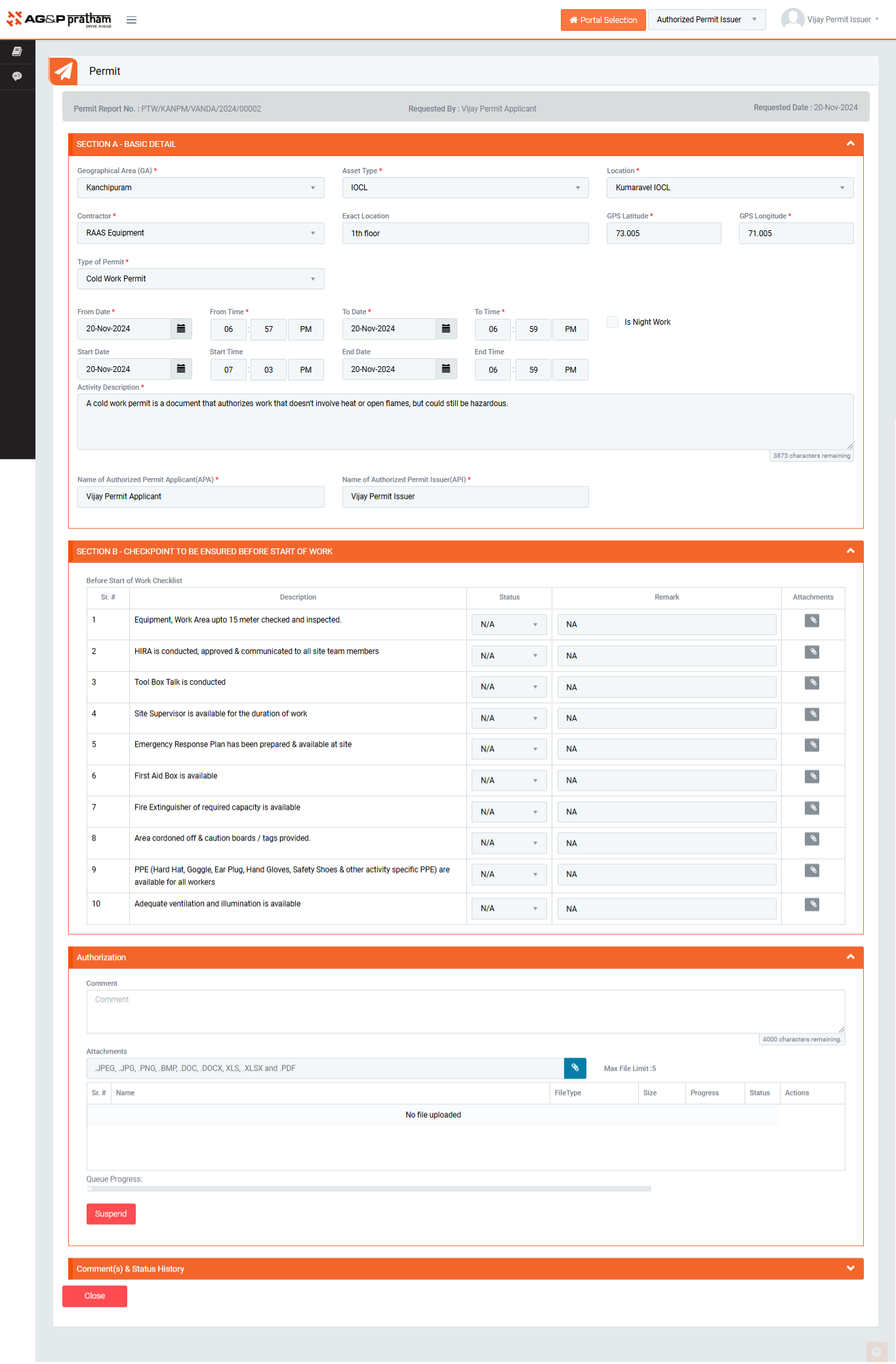
Figure 2
- Navigate to Permit Portal | Permit Dashboard screen. (Image 1)
- Click on ‘LIVE’
- Once HSSE Manager open the permit, he can perform three actions
- Suspend - Authorize to suspend the permit
- Audit - Authorize to audit the permit
- After permit is suspended, permit requester can revoke the permit
- Permit Issuer can perform two actions on revoked permit
- Approve
- Reject
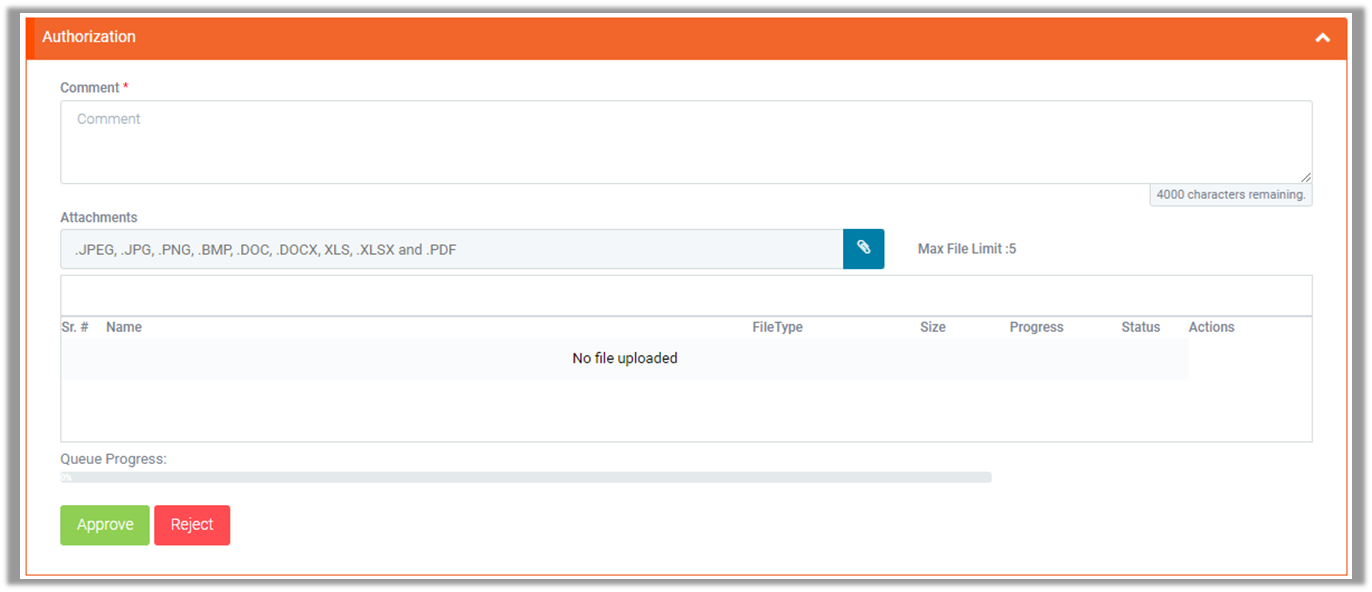
Figure 3
Note :
- Work permit shall be authorized to make SUSPEND by HSSE Manager.
- Work permit can request to REVOKE by Permit Requester
- Revoked permit can APPROVE or REJECT by Permit Issuer
- The fields marked with * are mandatory to be filled.