Incident
INCIDENT INVESTIGATION
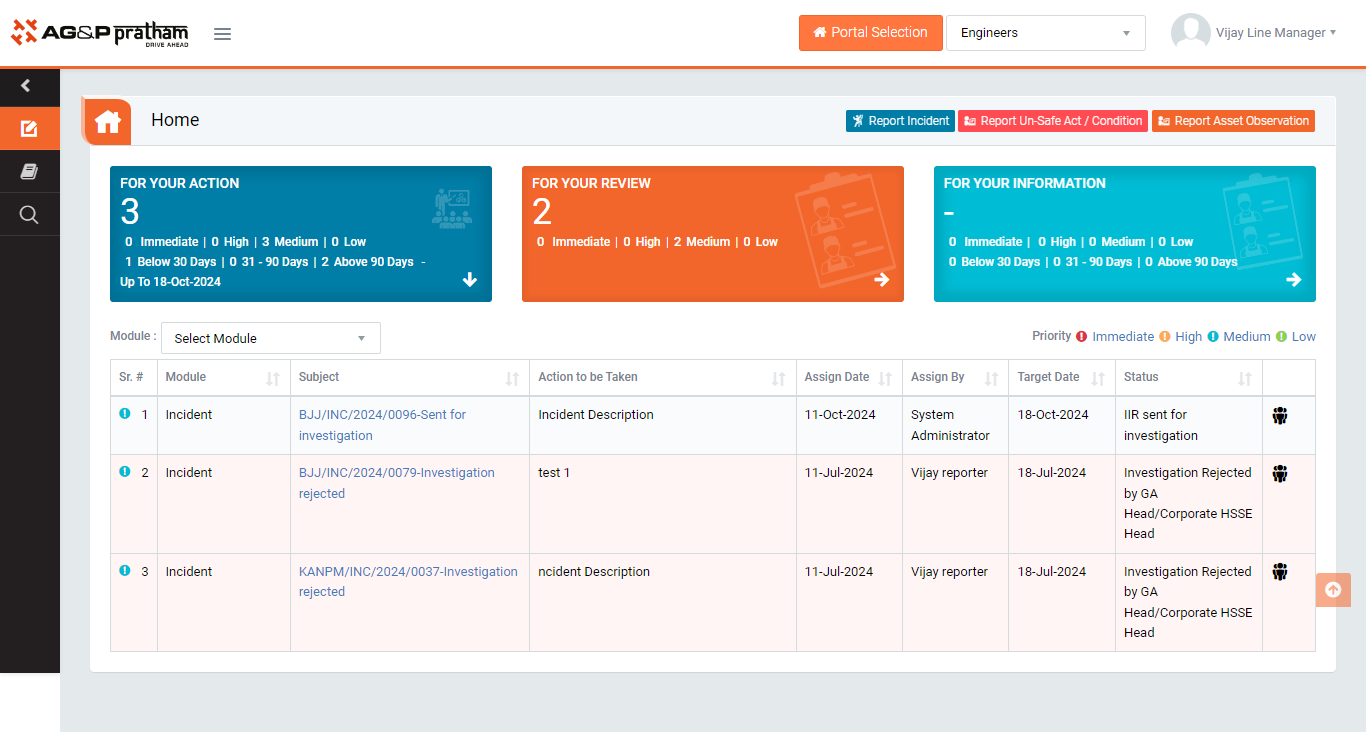
Figure 1
- Login as investigation team member and navigate through EHS portal to My Action screen (Image 1)
- There are three section provided to view and take action against tasks which are mentioned below :
- PENDING ACTIONS : Display “Incident”, “EHS Observation”, “EHS Inspection”, “Equipment Inspection” and action items which needs to be performed. Also display the tasks which are saved as draft are displayed here. User will update final information and submit it for further action. (Display by default)
- REVIEW ACTIONS : Display the tasks such as “Incident/Near Miss”, “EHS Observation”, “EHS Inspection” and “Equipment Inspection” including action items which needs to be reviewed. The tasks will be displayed to reviewer for review where reviewer will take action against it.
- INFORMATION ACTIONS : Display all the tasks such as “Incident/Near Miss”, “EHS Observation”, “EHS Inspection” and “Equipment Inspection” to creator/requester with their current status. User can view the task details by clicking subject in “Subject” column.
- When subject of “Incident” in “PENDING ACTIONS” section is clicked “Incident no- sent for Investigation” screen will be opened in different tab.(Image 2)

Figure 2
- There are 2 section in this screen mentioned below:
- IIR DETAILS : Where user can view the details of the report.
- INVESTIGATION : Where user can fill up investigation details and take action against a incident report.
- There are few sections in investigation where user can investigation details. The sections (Except Section A and Section B) will be available upon the selection of “Nature of Injury” and “Incident Classification”.
- SECTION A : Incident Basic Details - To add/edit basic details.
- SECTION B : Investigation - To add/edit investigation details like description of incident happened, sequence occurrence of incident and activities at the time of incident or persons involved etc.
- SECTION C : Statements - To add/edit statement of an injured individuals.
- SECTION D : Incident Causes - To add/edit incident causes like direct root causes and other factors, reasons for failure etc.
- If Why Why analysis required click on ‘YES’
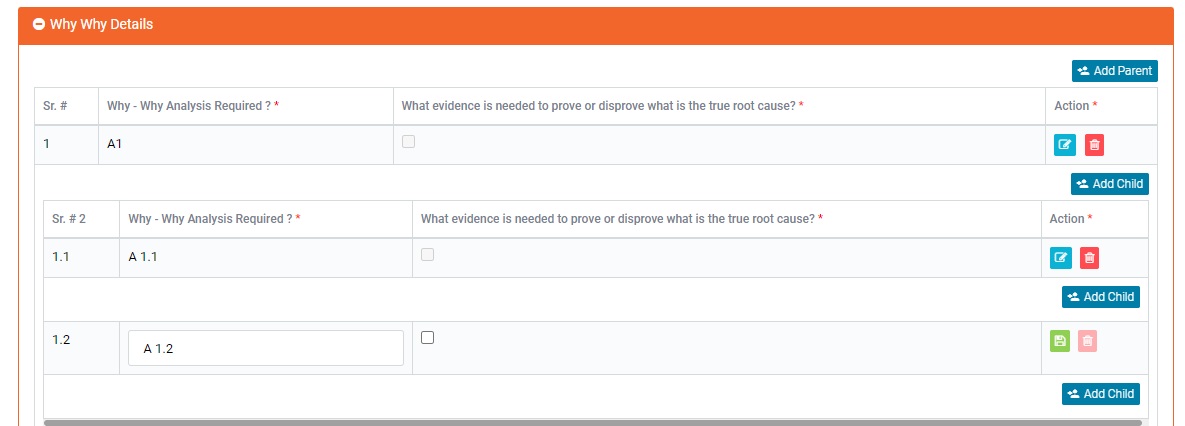
Figure 3
- If Why Why analysis required click on ‘YES’
- WHYS DETAILS WITH FISH BONE DETAIL : If why-why analysis is required the user need to fill up the details in this section.
- SECTION E : IMPROVE & CONTROL (Corrective & Preventive actions) - To add CAPA for the incident.
- To take action against a particular incident select action from drop down list in Investigation section :
- Investigation Completed & Send for GA Head / Corporate HSSE Head : The report will be sent for review to the concern person.
Note :
- Only Team Lead of the investigation team can submit the investigation report.
- The fields marked with * are mandatory to be filled.
- Investigation Team can edit the report contents.