PTW
PTW REQUEST
Objective : It allows users to create Permit according to their requirement. Only Authorized Permit Applicant User can request the Permit.
Request For Work Permit
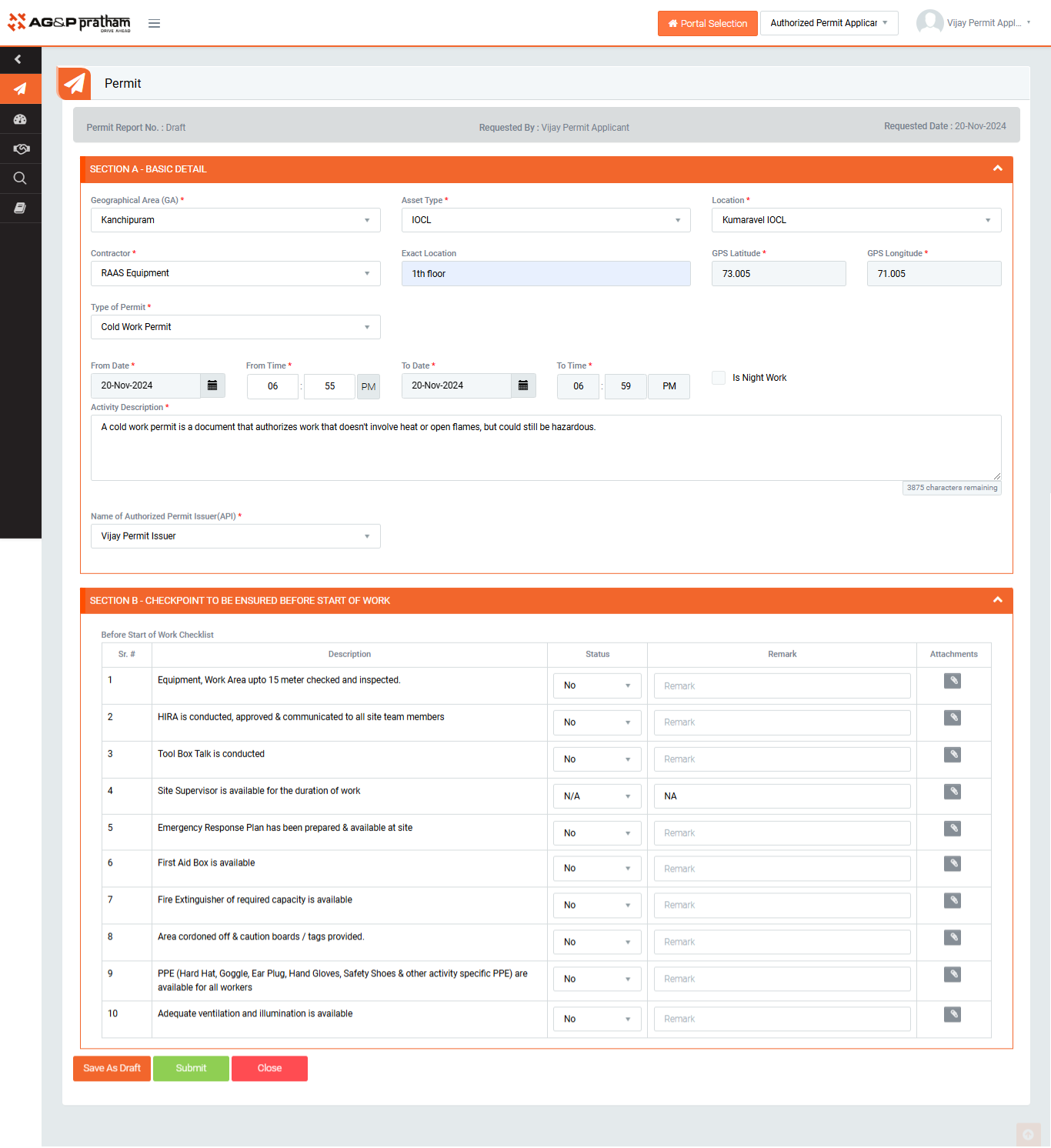
Figure 1
Below steps to be followed to complete a PTW request :
- Navigate to Permit Portal | Permit Request screen. (Image 1) - To request new permit. Click on the Permit Request button, Permit form will get open.
- Fill required Section and fields.
- The required section and fields are denoted by * and it is mandatory to fill.
- There are different sections that need to fill required details to apply for work permit
- Section A : Enter permit validity details. Click on Night work if permit is valid for night work. Provide Job details like GA, Location, Contractor, Permit type, issuing authority and gas tester along with job particulars.
- Section B : Checkpoint To be Ensured Before Start of Work
- Section C : Isolation Or Hazard Identification details is require as per type of permit selection.
- If Permit Requester user click on ‘Save as Draft’ button then the permit will save in Draft section and only same user can submit the permit
- After click ‘Submit’ button by Permit Requester the permit will move to next responsible user for permit approval.
Note :
- The fields marked with * are mandatory to be filled.
- Work permit shall be requested by permit applicant.
Permit Dashboard :
- Here in this dashboard users can find different permits at different stages like
- My Draft : Displays all drafted permits
- Rejected : Displays all rejected permits
- Pending for Approval : Displays all permits pending for approval
- Live : Displays all LIVE permits
- Extension : Displays all permits awaiting for extension approvals
- Suspended : Displays all suspended permits
- Closed : Displays all closed permits
- Timeout : Displays all delayed permits
- Re validation required
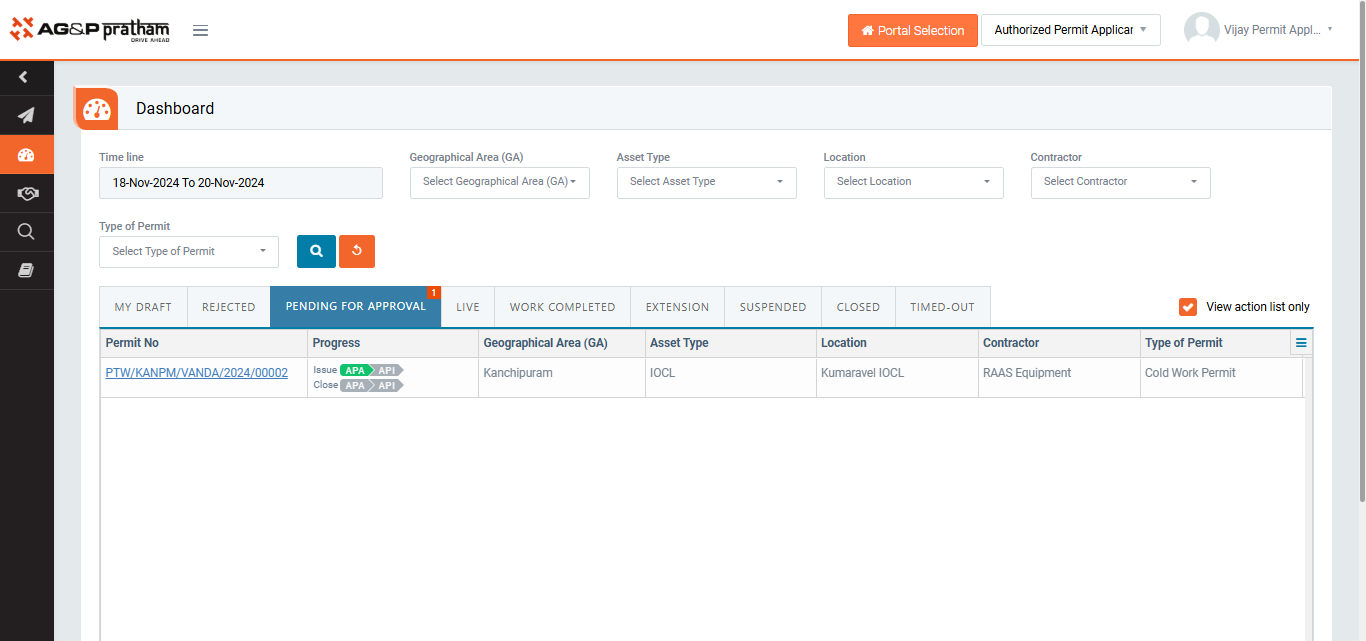
Figure 2
Note :
- Any of the system can report can do view the permit
- Only permitted roles can perform their respective actions like request, review etc.